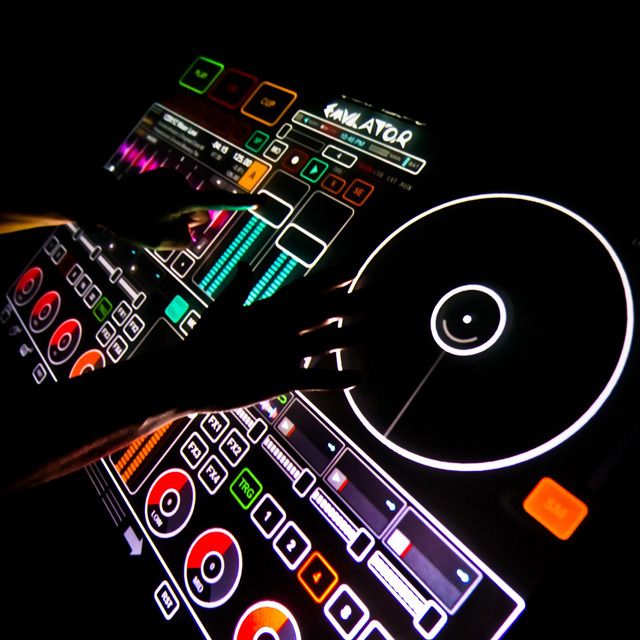
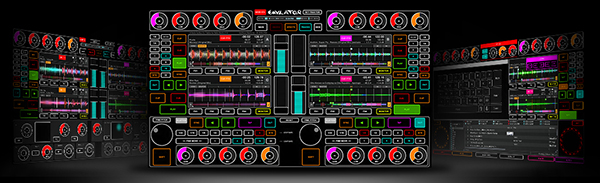
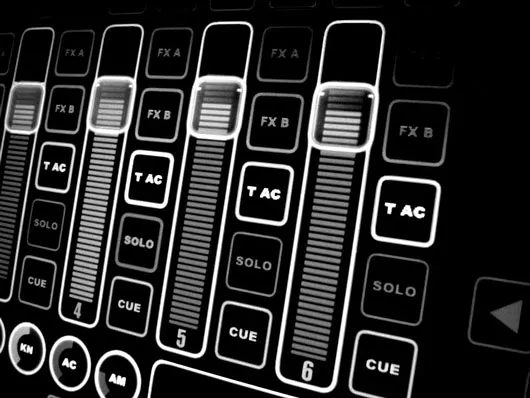
Emulator turns any Windows touchscreen into a fully custom controller. Design your own layout with faders, knobs,
buttons, encoders, XY pads, VU meters, and video monitors, then perform with it. No hardware limits. No fixed
layouts. Build exactly the controller you need, skin it to look however you want, and connect it to any software that speaks MIDI and other protocols. Download and start building — free to start.
Free to start. Built to grow. No barriers, no upfront cost just instant access to a professional control environment. When you’re ready, expand your setup with powerful add-ons designed for real-world performance.
More than software a control platform. From live stages to studios and experimental setups, Emulator adapts to your workflow and scales with your needs. Stable, fast, and built for demanding environments where reliability matters.
Cross-platform future. MS Windows today. macOS and Linux in development. Emulator is evolving into a unified control platform designed to run everywhere you need it.